
Mastering Shell Scripting in Linux: Your First Step Toward Automation
Shell Scripting 101: The Power Tool Every Linux User Needs

If Linux is the engine, then Shell Scripting is the autopilot. It helps automate repetitive tasks, saves time, and reduces human error. In this series, we’ll dive into the essentials of shell scripting i.e. from the basics to writing scripts that check system health.
🐚 What is Shell Scripting?
A shell script is simply a file containing a series of Linux commands. Instead of typing commands one by one, you can execute them all at once. This is the foundation of automation in Linux.

📌 The Shebang Line (#!)
Every shell script begins with a shebang (#!), which tells the system which interpreter to use.
Examples:
#!/bin/bash
#!/bin/dash
#!/bin/sh
#!/bin/ksh
bash,dash,sh,ksh→ different shell executablesOn Ubuntu,
#!/bin/dashis commonIn many Linux distros,
#!/bin/shpoints to#!/bin/bash(though not always true today, as some systems default todash)
✨ Printing Output
The most basic shell command is echo. It prints text to the screen.
echo "my name is mounika"
⚙️ Running a Shell Script
There are two ways to execute a shell script file:
sh filename.sh
./filename.sh
Tip: Before executing, make sure the script has execute permissions.
🔐 File Permissions with chmod
The chmod command changes file permissions.
chmod abc filename
a = permissions for you (the owner)
b = permissions for your group
c = permissions for everyone else
Example:
chmod 777 filename.sh
Here, 7 = 4 (read) + 2 (write) + 1 (execute) → meaning full permissions.
📜 Command History
history
This shows all the commands you’ve recently used. Very useful when debugging or reusing commands.
🐞 Debugging Scripts with set -x
If you want to see each command executed step-by-step, use debug mode:
set -x
🖥️ Example: Node Health Check Script
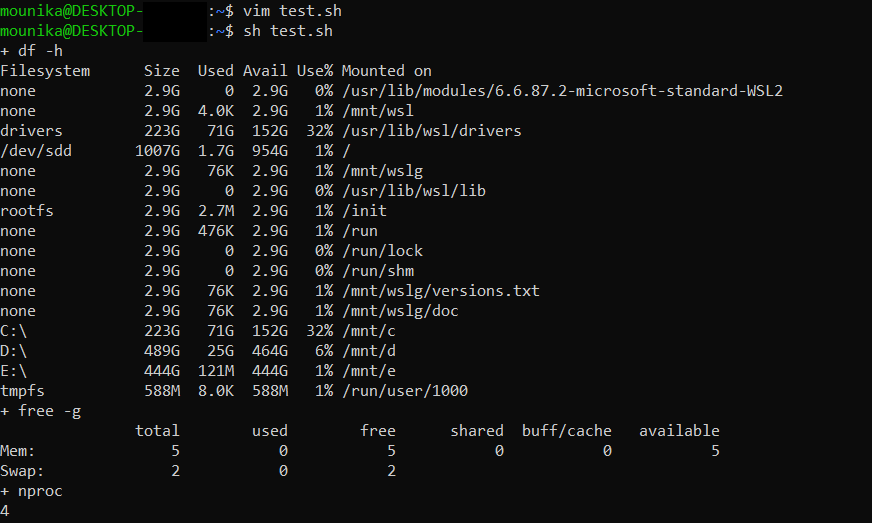
Here’s a real shell script that reports CPU, memory, and disk usage. Always include metadata (author, date, purpose, version) in your scripts.
#!/bin/bash

##################
# Author: Satya Mounika
# Date: 24/07/2023
# Purpose: Node health monitoring
# Version: v1
##################

set -x   # Debug mode - prints each command as it runs

df -h    # Disk usage
free -g  # Memory usage in GB
nproc    # Number of CPU cores
Output:
🔎 Process Management
List all processes:
ps -ef
(
ps= process status,-ef= detailed view in full format)Search for a specific process:
ps -ef | grep "amazon"
🔗 Pipes (|)
A pipe connects the output of one command to the input of another.
Example:
vim test.sh
echo 1
echo 11
echo 12
echo 55
Run the script:
./test.sh
./test.sh | grep 1
Output:
1
11
12
The pipe ensures only lines containing “1” are shown.
💡 Interview Question
date | echo "date"
Output:
date
Why?
dateis a system command that writes to stdout.echo "date"just prints the literal string “date”.Pipes don’t accept input from stdin for
echo. They only pass the first command’s output to the next.
🪄 Filtering with awk
grep→ returns entire linesawk→ extracts specific columns
Example:
ps -ef | grep amazon | awk -F" " '{print $2}'
Another case:
If test.sh contains:
My name is Mounika
My employee id is 1162
Command:
grep name test.sh | awk -F" " '{print $3}'
Output:
Mounika
🚨 Error Handling with set -e and set -o pipefail
When writing scripts with pipes, always use:
set -e          # Exit immediately if any command fails
set -o pipefail # Catch errors in piped commands
Example:
sssssheheh | echo
This runs without error because echo succeeds.
But:
sssssheheh | echo | skjhsdfhhf
This fails, because the last command is invalid.
📂 Log Files and Network Tools
Search logs for errors:
curl <URL_of_logfile> | grep ERROR
(
curlfetches the log,grepfinds “ERROR”)Download files:
wget <URL>
👉 Difference: curl retrieves and displays content, wget is mainly for downloading.
👑 User Management
Switch to root:
sudo su -
(sudo = substitute user do, su = super user)
🔍 Finding Files
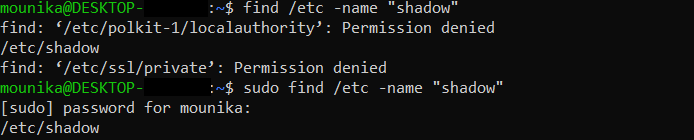
find /etc -name "shadow"
Output:
permission denied
With root:
sudo find /etc -name "shadow"
Output:/etc/shadow contains sensitive hashed passwords → only root can read it.
🎯 Key Takeaway
Shell scripting isn’t just about commands, it’s about automation, control, and power. From checking system health to parsing logs, from managing processes to trapping errors, shell scripting makes Linux a true automation powerhouse.
📌 Missed the earlier parts of the Linux series? Start here:
✨ Thanks for reading!
I publish posts on DevOps regularly. So, make sure you subscribe to get the latest updates straight to your inbox.
If you enjoy my content and find it valuable, you can support me with a coffee. Every contribution, big or small, helps me keep creating more free content for you.
💛You can support me here: Buy Me a Coffee